IdeaScore AI reads every application against your rubric and shows the evidence for each score. It never decides. This guide sets it up so your panel keeps judging for itself, in about eight minutes.
Related: IdeaScore AI and using AI in application review responsibly.
Before You Start
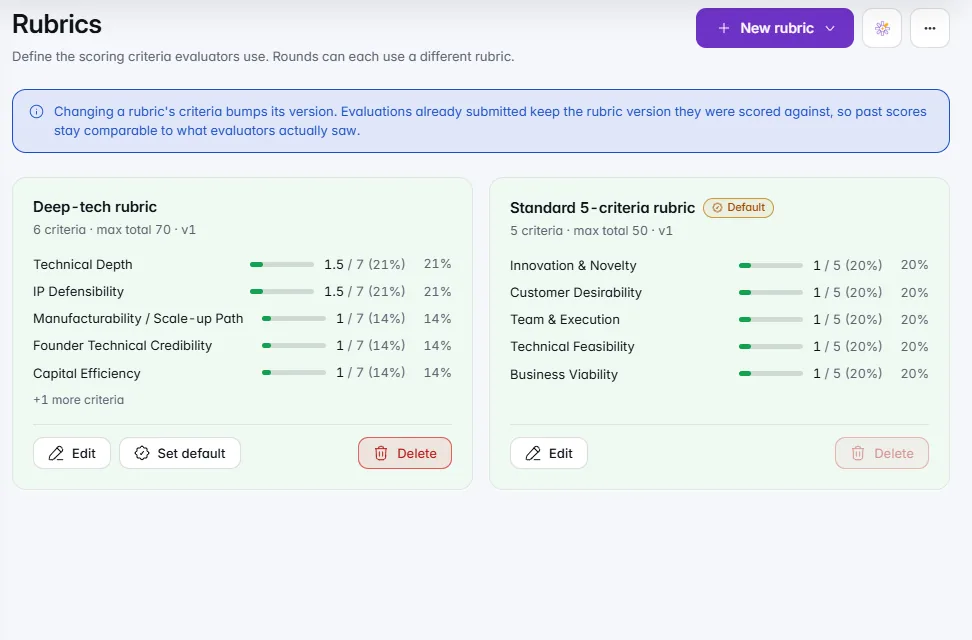
- A rubric with written descriptors. IdeaScore AI scores against them, so vague descriptors give vague results.
- An owner or admin to accept the data terms once, before the first run.
- Your institution's rules on AI use, if it has them.
- Credits. They come with your plan, and the cost of each run shows before it starts.
Step 1: Read What It Is Sent
Open the IdeaScore AI workspace, then Settings › Data and privacy. It explains where applications are processed, what is kept and who sees it.
- Before anything is sent, the names and contact details of people in your programme are swapped for labels such as "Founder 1", and email addresses, phone numbers and ID numbers are taken out.
- IdeaScore AI processes text outside India, and there is no India-only option. That is why an owner or admin accepts it once here.
- Applications are never used to train AI models.
Owners can also switch IdeaScore AI off for the whole organisation in the same section.
Step 2: Choose What Evaluators See
Under What evaluators see, pick one:
- Hidden from evaluators, the default and the recommended choice. Evaluators form their own view.
- Shown after they submit their own score, team by team.
- Always shown.
Whatever you choose, evaluators never see IdeaScore AI's scores or full evaluations, and blind rounds always hide its notes. Programme admins can make this stricter for their programme, never more open.
Step 3: Run It and Check the Cost
In the workspace, choose what to assess in the run bar. The cost in credits, and what you will have left, shows before anything starts. Swift, Pro and Deep differ in depth and cost; Deep Research also searches the web as well as your programme, adds 8 credits on Pro and Deep, and lists the pages it used.
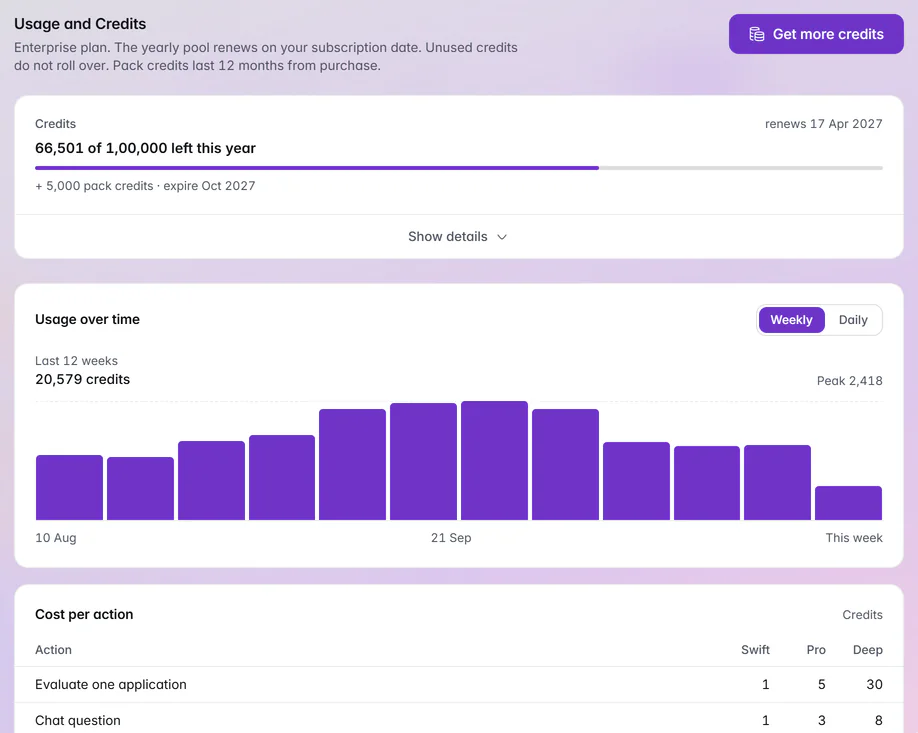
A run that fails is refunded automatically, and a re-run is stored beside the earlier result, never over it.
Step 4: Read the Evidence, Not Just the Score
Open a result. Each criterion has a score, the reason in plain words and the exact words from the application it relied on, checked against the application before you see them. Confidence is shown for each criterion: low confidence is where to read closer.
With Deep Research, every source is labelled Official, Research, Press or Other, and the result says what it could not confirm. Treat an unconfirmed claim as unconfirmed, not as false.
Step 5: Keep People Deciding
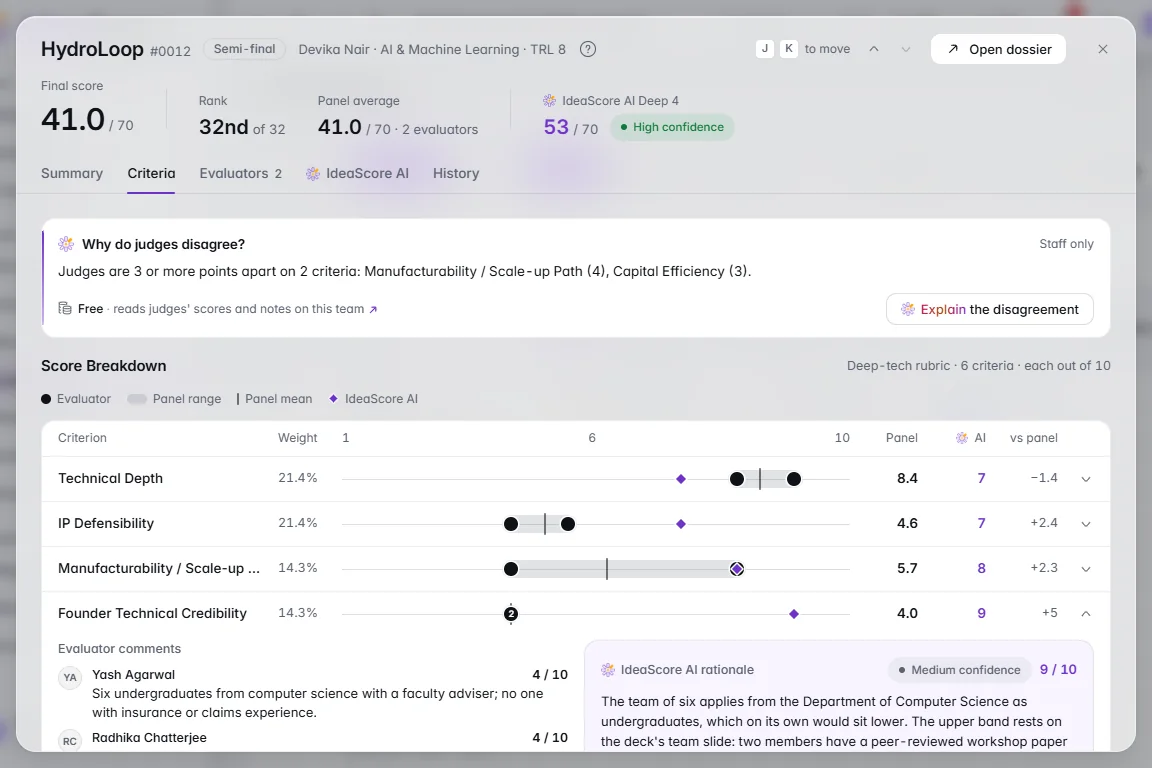
- Keep the Human leaderboard as the ranking of record. IdeaScore AI's score only counts in the Blended view, at the weight you set.
- Use a large gap between the panel and IdeaScore AI as a reason to read the application again, never as a reason to change a score.
- Use Why do judges disagree? to see where evaluators split, then talk to them.
Step 6: Tell Applicants
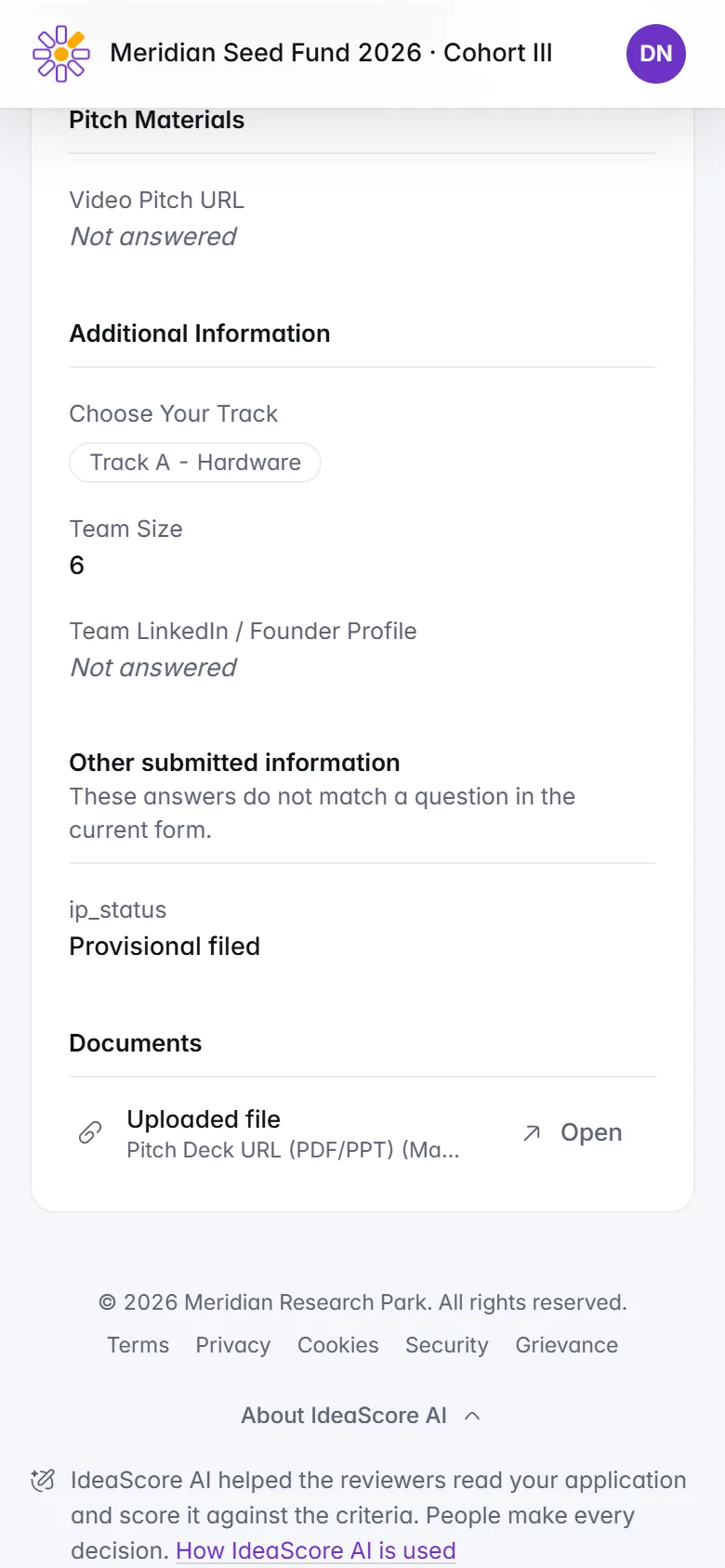
Say in your call document that IdeaScore AI helps reviewers read applications and that people make every decision. Applicants' own pages carry the same note at the foot.
Checklist Before the First Run
- Data terms read and accepted by an owner or admin
- What evaluators see decided, Hidden unless you have a reason
- Rubric descriptors written, so scores have something to stand on
- Cost checked against your credits before each run
- Human view agreed as the ranking of record
- Applicants told in the call document