Most exports in IdeaScore are one button on the page you are already looking at. This guide shows which file to take to which meeting, in about six minutes.
Related: Reports and Decisions.
Before You Start
- The question the file must answer: a list for a colleague, a pack for the committee, figures for the board.
- The right role. Programme admins export their programmes; only owners export the whole organisation.
- Somewhere safe to keep it. An export holds applicants' personal data; store and share it as your policy says.
Step 1: Export the List You Are Looking At
- Submissions: Export downloads the current view, with the same filters, columns and order. Select rows first to export only those.
- Leaderboard: Export downloads the ranking as CSV or an Excel workbook.
- Audit log: Export downloads the filtered entries as CSV or Excel.
Filter first, then export. A filtered view is a smaller file and a clearer answer.
Step 2: Download the Committee Pack
Open Reports. The overview holds the funnel, evaluator throughput, panel consistency, round outcomes and the sector mix. Under the charts, Exports and Committee Pack offers three files:
- The Excel workbook: every team, score and comment.
- The Committee pack: rankings and charts as a PDF on A4.
- Decision letters: opens the decisions for the round.
The round chosen on Details sets what the files cover. The card also says who last downloaded the pack and when.
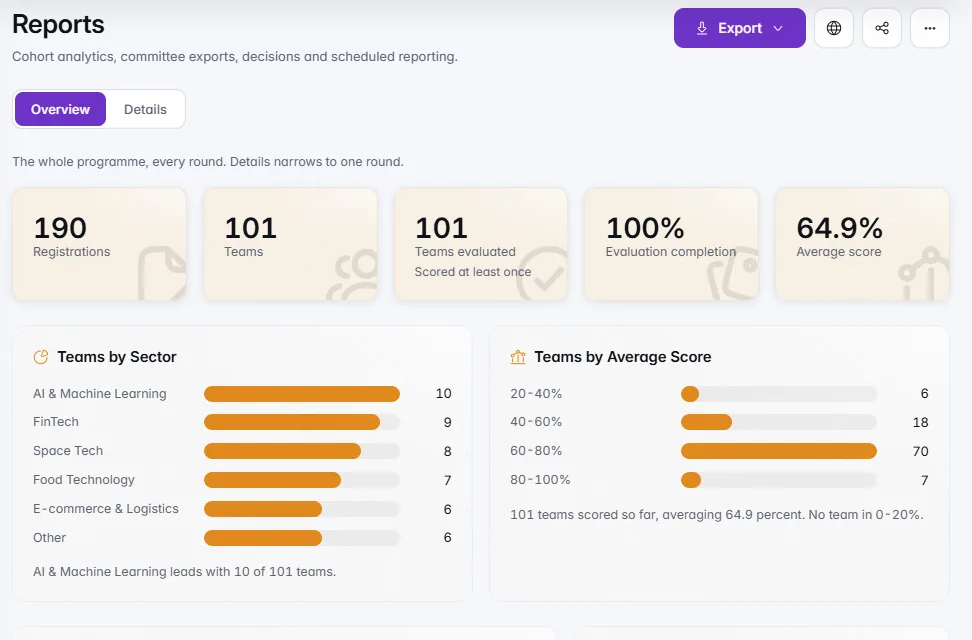
Download programme summary (PDF) makes a short copy for your board, and Export overview (CSV) downloads the numbers behind the charts.
Step 3: Schedule a Report
On Professional and up, Schedule a report on Reports sets a weekly or monthly committee report that emails itself. It goes only to people in your organisation, or to yourself, and stops for anyone who leaves. Edit or delete it under Schedules.
Step 4: Export Everything
Owners open Settings › Your Data and Privacy › Open data export and choose Start export. You get one ZIP of programmes, applications, scores, decisions, people, the audit log and uploaded files, each record as JSON and as CSV, with a README.
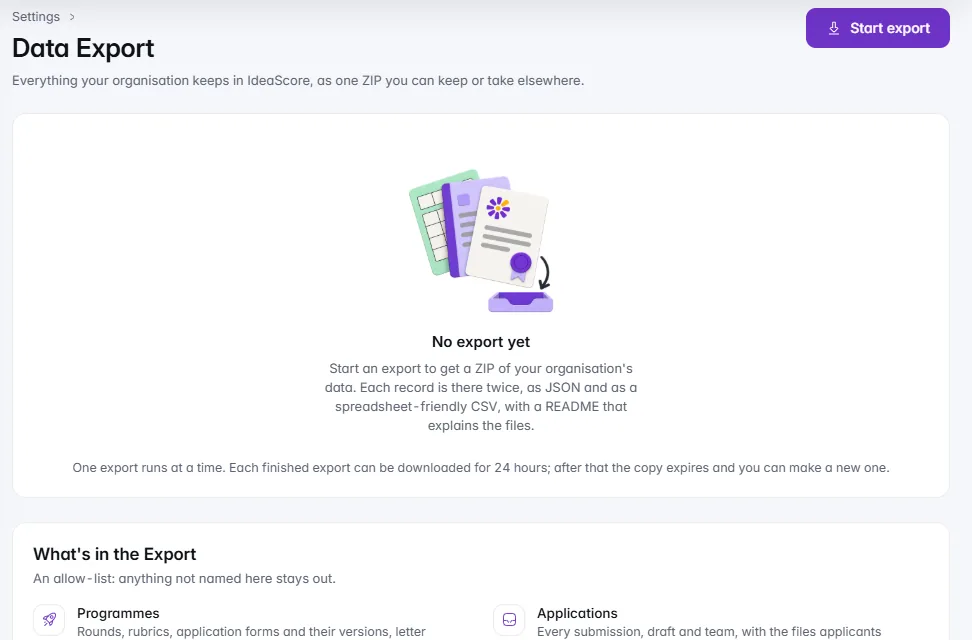
Passwords, sign-in secrets and API keys are never included. You are emailed when it is ready; the download is available for 24 hours, and every download is recorded in the audit log.
Checklist Before a Board Meeting
- Round chosen on Details before downloading
- Committee pack and Excel workbook downloaded
- Programme summary PDF for the board
- Files stored where your policy says, not in a personal inbox
- Scheduled report set for the next cycle, if the board wants one