Evaluators need time to accept, sign in and look around, and conflicts are far easier to keep apart before assignment than to unpick after it. This guide covers both in about eight minutes.
Related: Review, Evaluation, and conflicts of interest in grant review.
Before You Start
- The evaluator list: name, email and the sectors each person knows.
- Your policy on conflicts: co-founder, supervisor, investor, close colleague. Tell evaluators before they score.
- How many evaluators per team in the round, and the most teams one person can take.
- At least one round with its rubric, so there is something to assign.
Step 1: Add Your Evaluators
- Open Evaluators and choose Add evaluator.
- Type the email and name, and tick the sectors they know. Auto-assign uses these to match teams.
- Leave weightage at 1x unless you have a reason. It changes how much their scores count in every ranking, including scores already given.
- Check the message on the right: it is exactly what they will receive. Save.
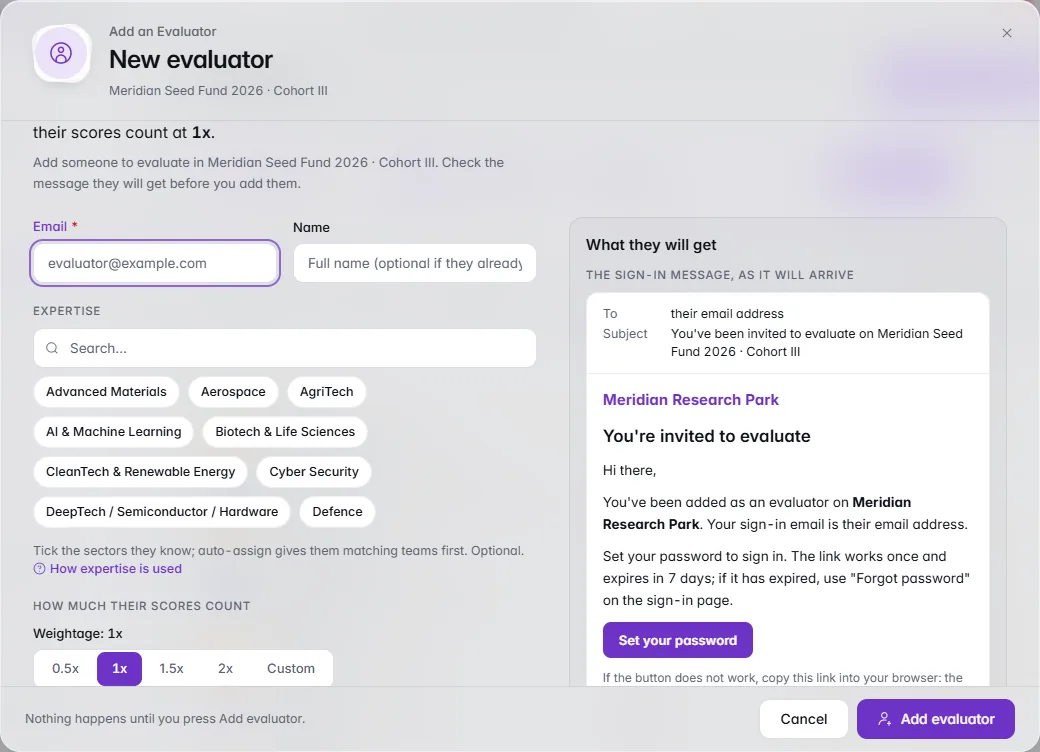
The invitation goes only to someone without an account. If your organisation's email is off, the sign-in link shows once in the sheet so you can pass it on yourself.
Step 2: Decide What Evaluators See
Open Programme Settings › Evaluator privacy. Two switches start off:
- Show evaluators team contact details. Off means they see team names and content, never emails or phone numbers.
- Show evaluators the leaderboard after they finish scoring. Off means only admins see rankings.
Leave both off unless you need them. In an awards programme, jurors never see the nominator, whichever way the first switch is set.
Step 3: Assign Around Conflicts
On Assignments, the Conflict-Aware Assignment card works out a plan when it opens: who would score what, with violet lines for an expertise match, grey for the lightest load, and a lock where a declared conflict keeps a pair apart.
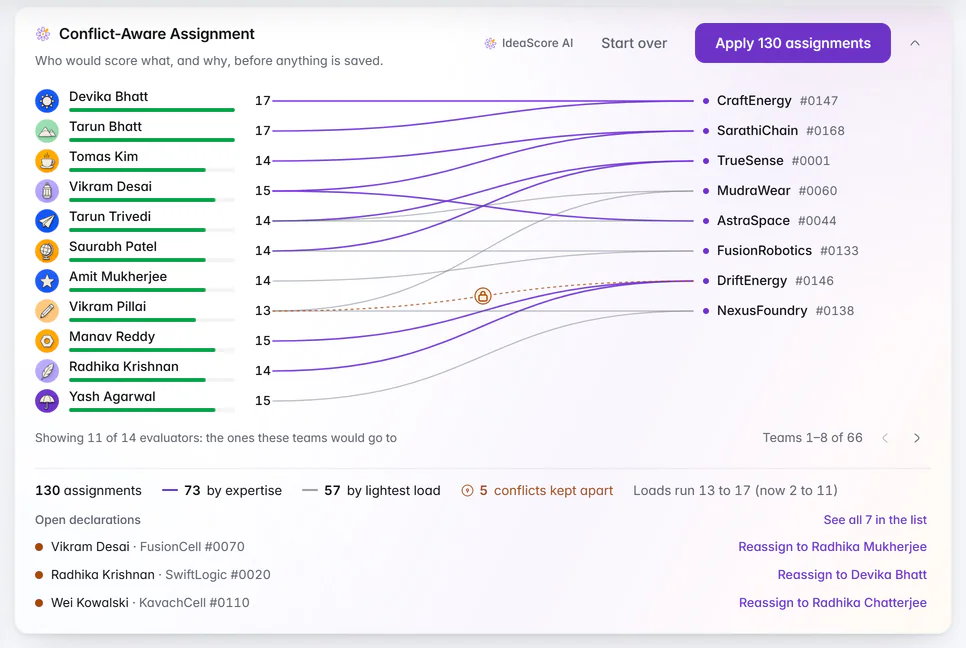
For your own rules, open Auto-assign and set Evaluators per team, Limit per evaluator, Match expertise first and Avoid conflicts of interest. Press Preview, then Check, then Save. The result says what happened, such as "Created 42, skipped 3", and Undo these assignments removes the whole change.
Step 4: Handle a Conflict Declared Mid-Round
An evaluator who cannot score a team fairly chooses Declare a conflict on it and says why. The team leaves their list and their search.
- On Assignments, open Conflicts.
- Reassign the team, or use Reassign on the open declaration to send it to the best-placed evaluator.
The conflict stays on record, so neither auto-assign nor a manual change gives the team back to that evaluator. In a committee session, a member with a conflict on a team does not see its card or vote on it.
Step 5: Keep Scoring Moving
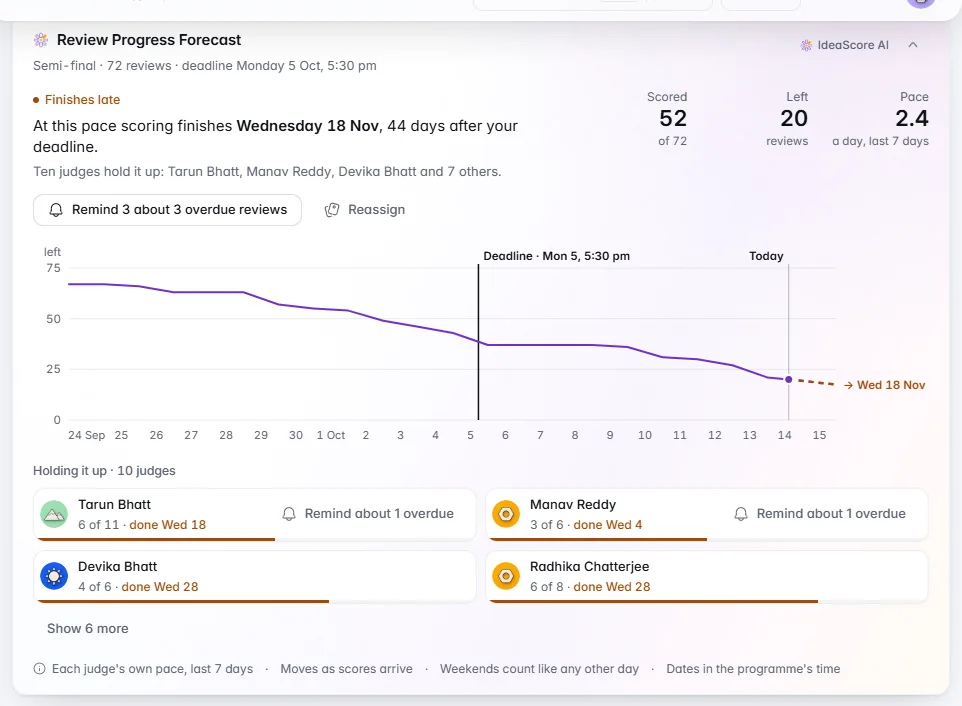
Remind overdue on Assignments emails only evaluators with overdue work, and nobody is reminded twice in 24 hours. The Review Progress Forecast shows when scoring will finish at the current pace, and who is holding it up.
Checklist Before Scoring Opens
- Every evaluator added with email and expertise
- Weightage left at 1x unless agreed otherwise
- Contact details and leaderboard switches decided
- Conflict policy sent to evaluators
- Plan previewed, conflicts kept apart, assignments applied
- Every team has its full number of evaluators