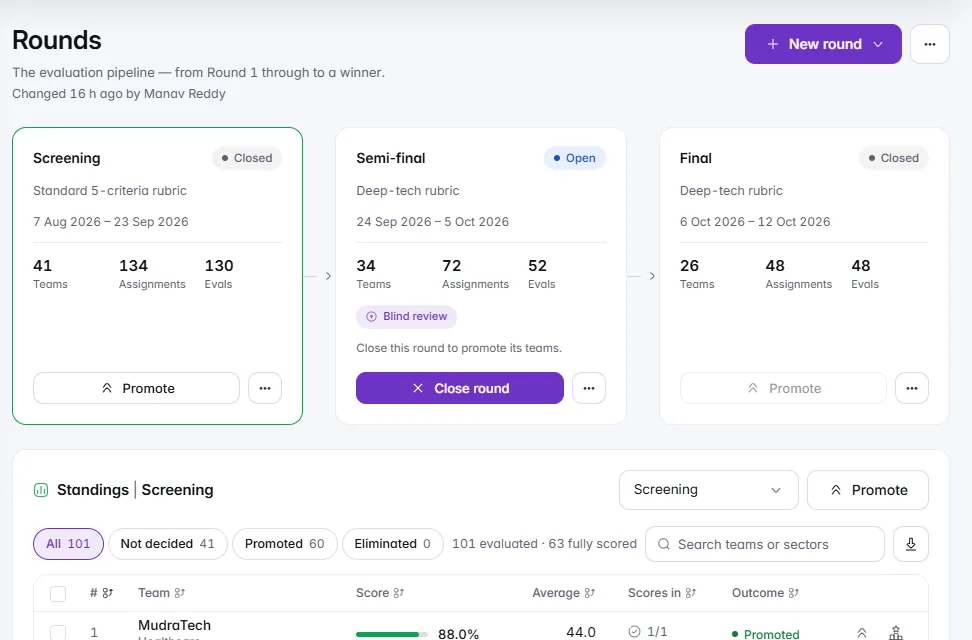
Blind review in IdeaScore is three settings, and a review is only as blind as the weakest of them: the round's Blind review switch, deck masking for the files, and evaluator privacy for contact details. This guide sets all three in about seven minutes.
Related: Review and blind review for scholarships and awards.
Before You Start
- Your plan includes multi-round selection (Growth and up). Blind review is a round setting.
- Which rounds are blind. Many programmes run screening blind and the final open, because a final often scores the team itself.
- A note for applicants asking them to keep names out of their written answers and decks where they can.
Step 1: Switch On Blind Review for the Round
- On Rounds, open the round's Edit.
- In the Evaluators section, switch on Blind review.
- The overview now reads that evaluators don't see names or institutions. Choose Save changes.
In a blind round, evaluators do not see the names, email addresses or institutions behind an entry, and IdeaScore AI's notes and evaluators' shared comments stay hidden. Where each entry is one person (a scholarship, fellowship or award) or in a moot court, entries show a case number, and names are removed from written answers too.
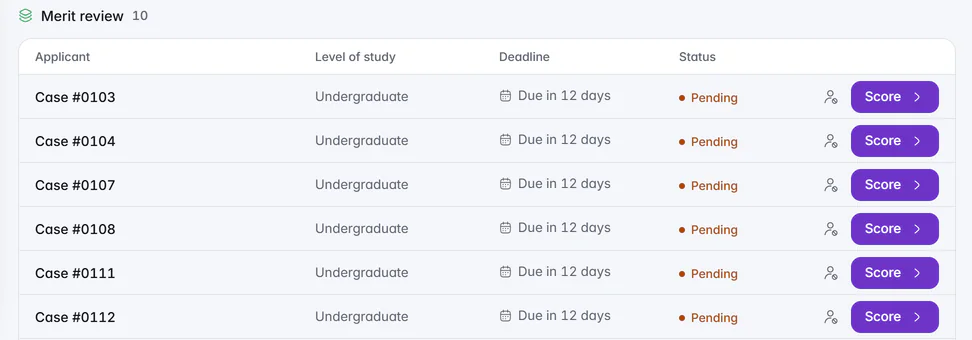
A reviewer who judged an entry blind keeps seeing it that way in later rounds, even after it moves to an open one.
Step 2: Mask the Decks
The round switch hides identity in the application. Decks need masking as well, or a founder's name on slide one undoes it.
- Open Programme settings and, under What evaluators see, choose Set up deck masking.
- Switch on Mask decks for evaluators. Choose All rounds (including decks uploaded later) or the current round only.
- Preview a real slide from up to three of your teams' decks, as uploaded and as evaluators will see it.
- Choose Mask. It takes a few minutes, and you are notified when every deck is done.
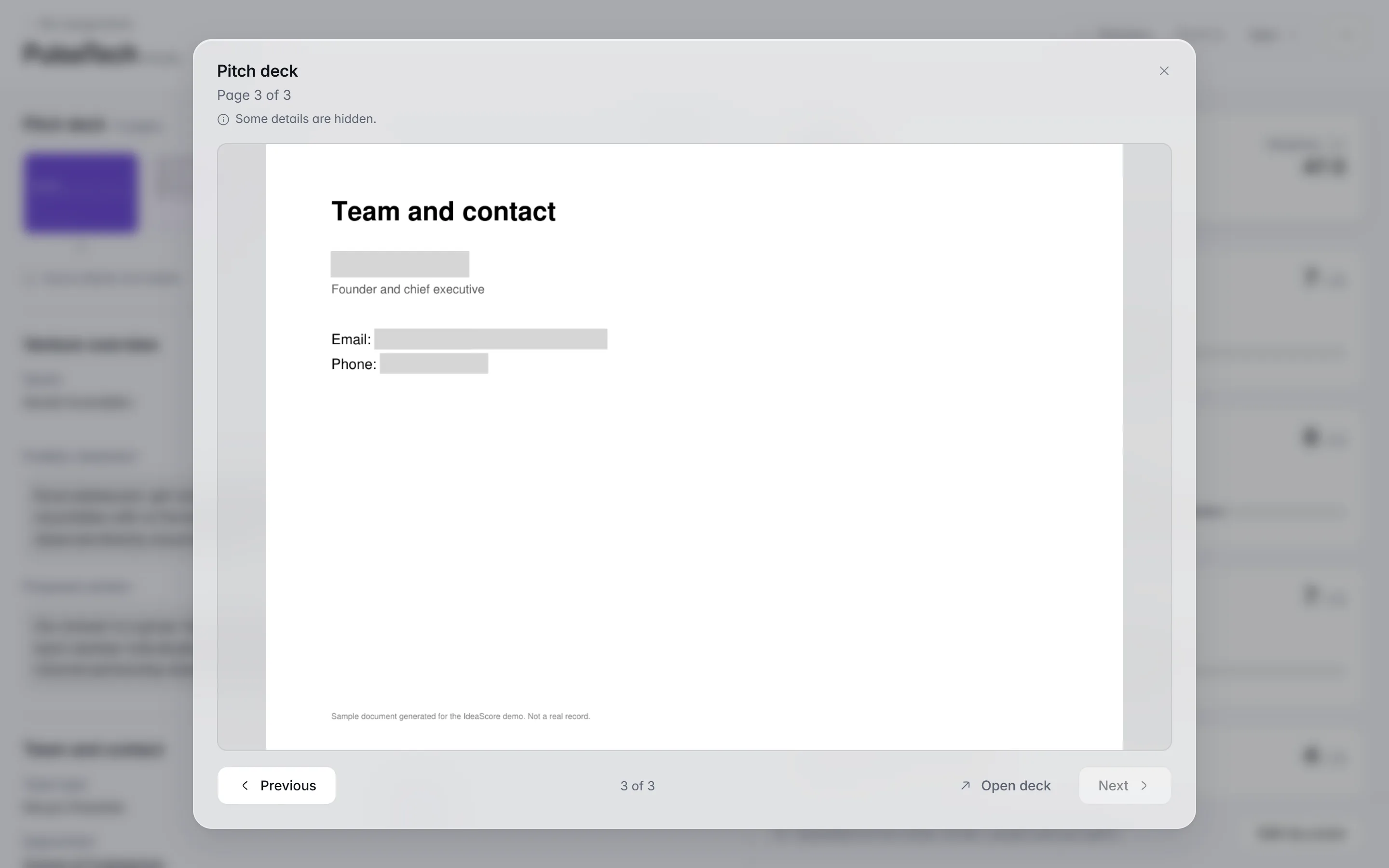
Names and contact details are taken out of the file itself, not covered over, and photographs are removed.
Step 3: Settle the Decks Masking Cannot Check
Some files cannot be checked: text inside an image, a scanned page, a script IdeaScore cannot read for names yet, a spreadsheet or a Word file. These stay hidden from evaluators until you choose. Open Review in the masking dialog and, for each one, pick:
- Hide from evaluators (suggested), or
- Show the masked copy anyway or Show as uploaded, knowing what it may reveal.
Asking the team for a PDF with names in Latin letters usually solves it.
Step 4: Check Evaluator Privacy
In Programme Settings › Evaluator privacy, keep Show evaluators team contact details off. Keep IdeaScore AI's notes hidden from evaluators too; blind rounds hide them regardless.
Step 5: Look at It as an Evaluator
Open one team the way an evaluator will: its application, its deck and any links. A deck or video link that contains the applicant's name shows as Link hidden in blind review. If anything still identifies the team, fix it before the round opens, not after the first score.
Checklist Before the Round Opens
- Blind review switched on for each blind round, and saved
- Deck masking on, previewed and finished
- Every deck masking could not check decided: hidden or shown knowingly
- Team contact details hidden from evaluators
- One team checked as an evaluator would see it
- Evaluators told the round is blind and why